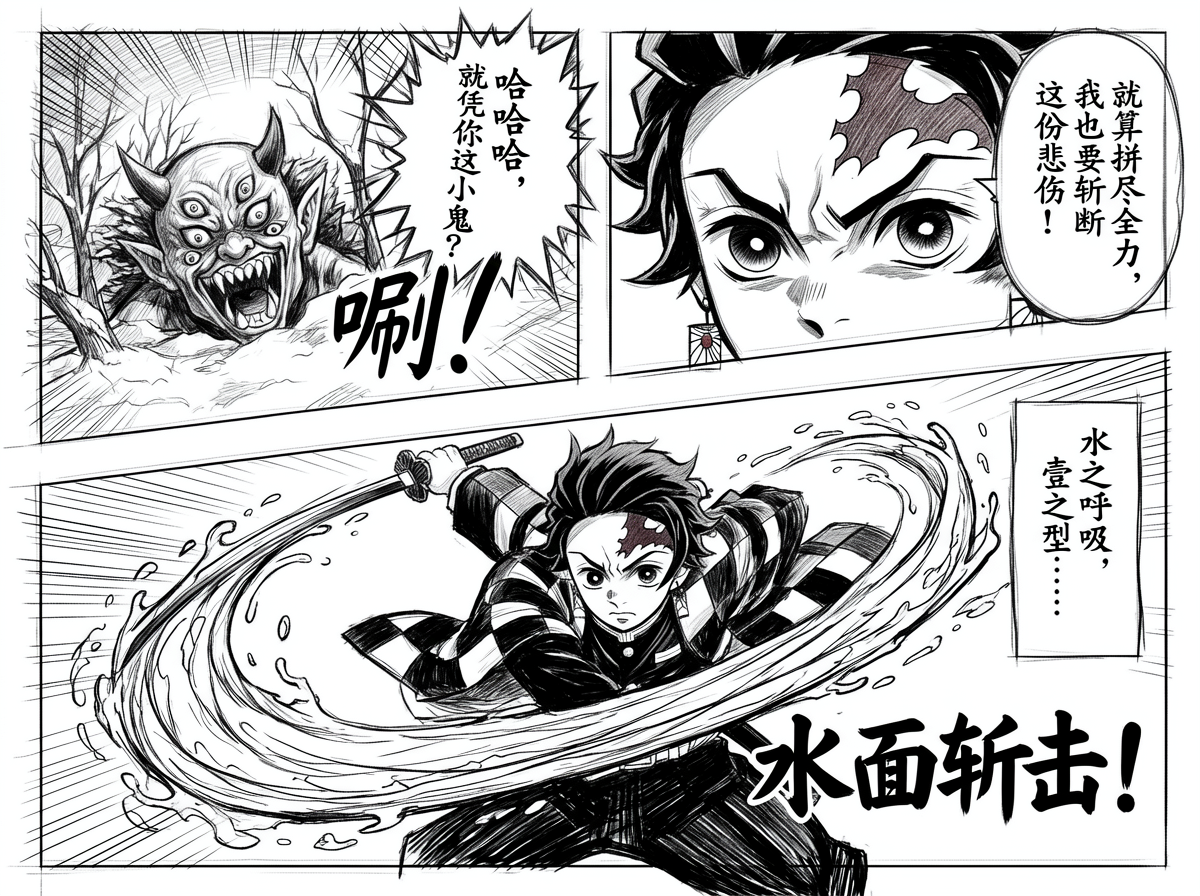
 Panel Comic Manuscript
Edit Images · Multi-reference Workflow
AI Multi-image Composer with GLMImage
Combine two to four people, products or visual references into a believable shared scene—not a collage—while giving every input an explicit role and reconciling scale, perspective, light, color and occlusion.
- Two references required, up to four
- Prompt optional with a useful default action
- Multi-subject identity guidance
- Landscape-first composition

AI Multi-image Composer with GLMImage
Add image
0
—
Made with GLMImage
Works made with AI Multi-image Composer with GLMImage
Real results shared by creators who used this exact workflow. Tap any image to view its prompt.
Panel Comic Manuscript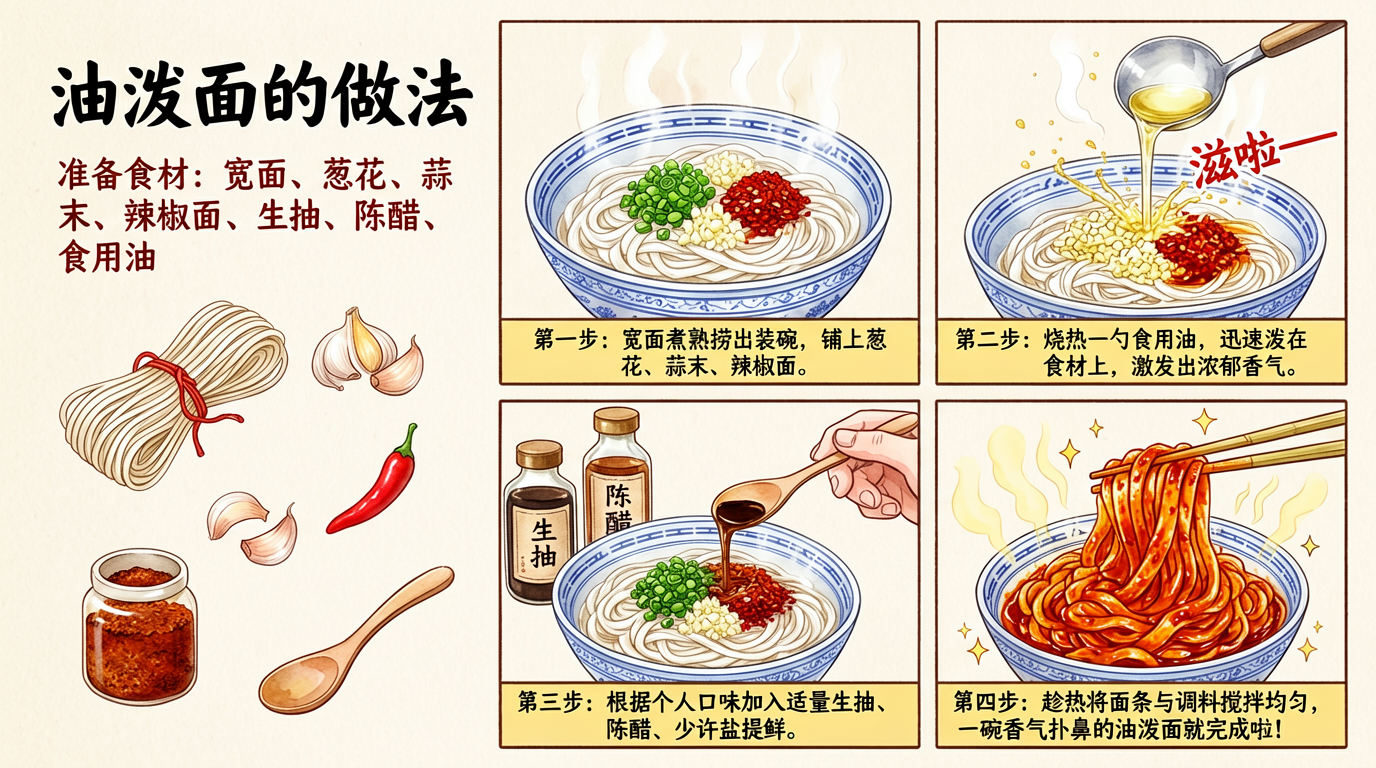 Oil-Splashed Noodles Grid Comic
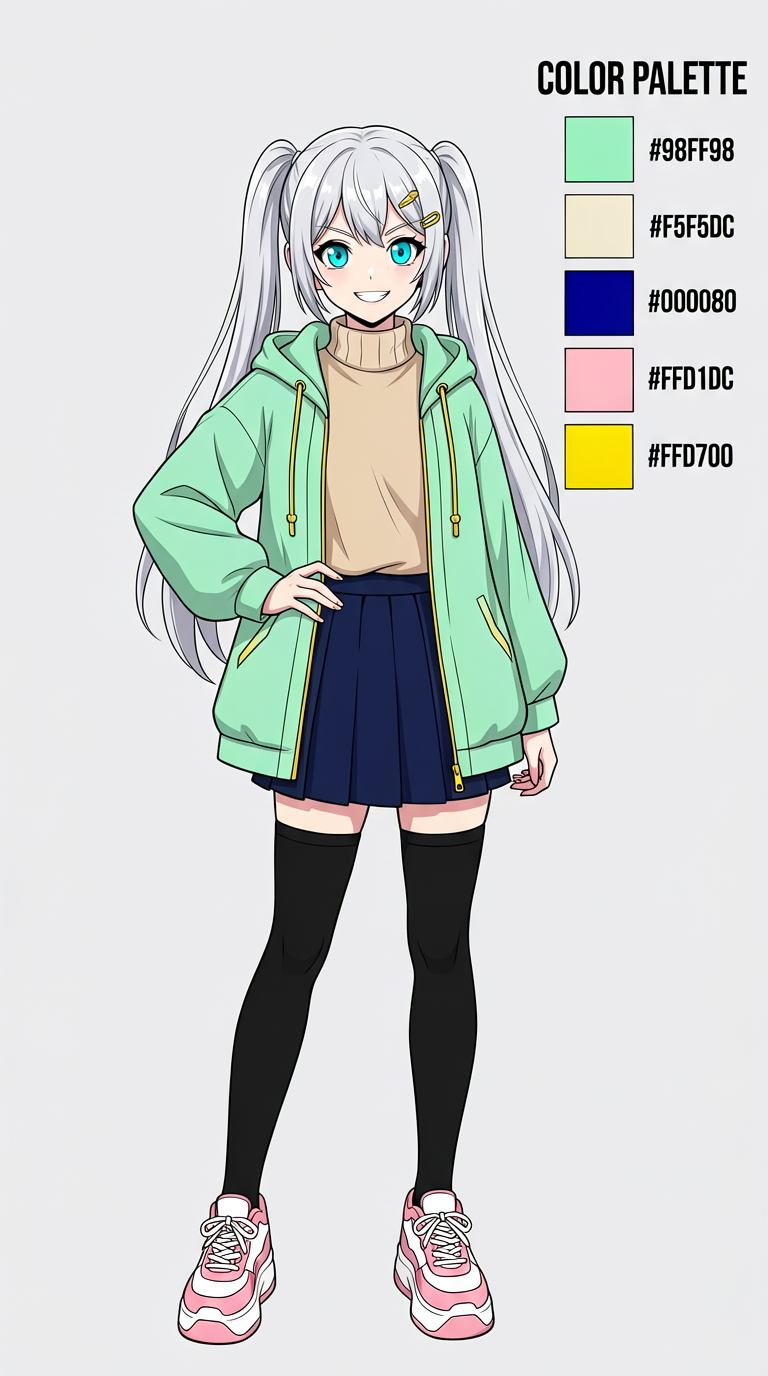 Anime Girl Character Design Sheet
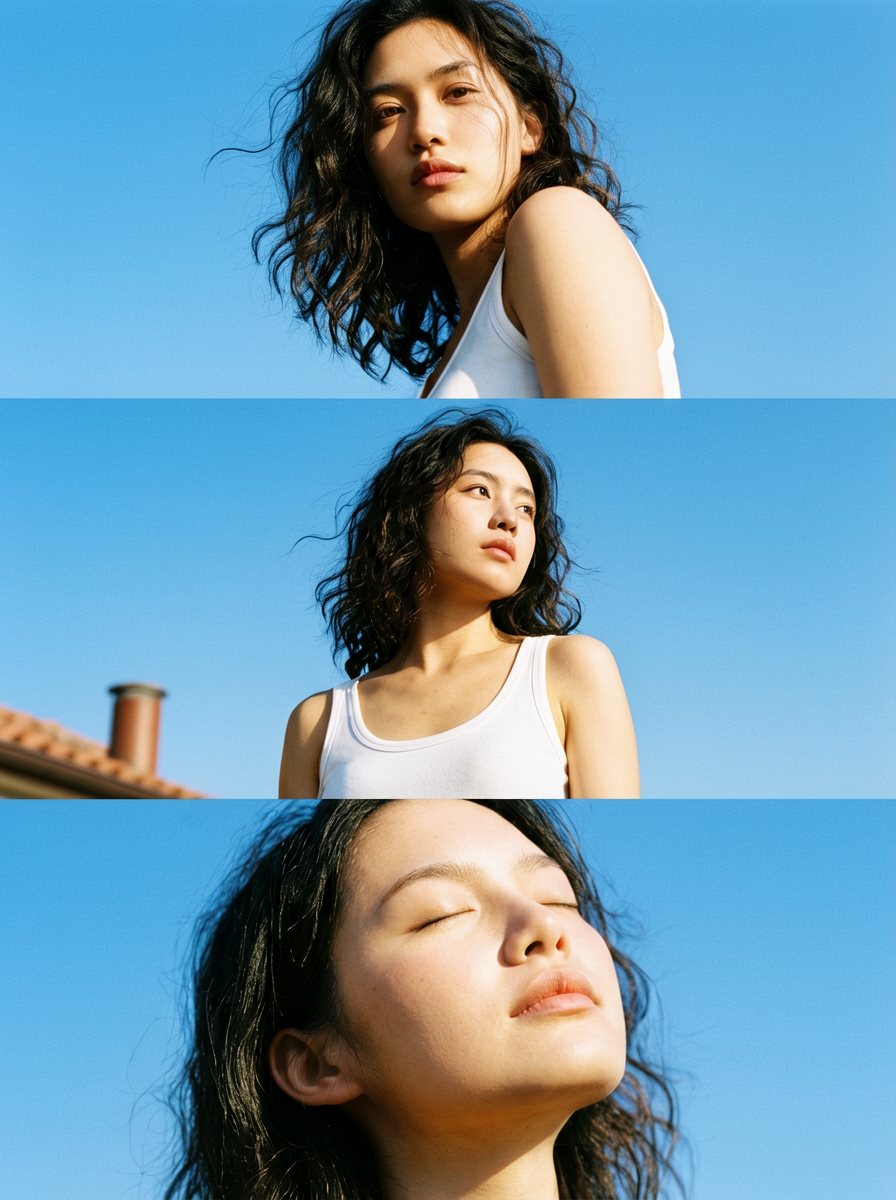 Blue Sky Film Triptych Female Portrait
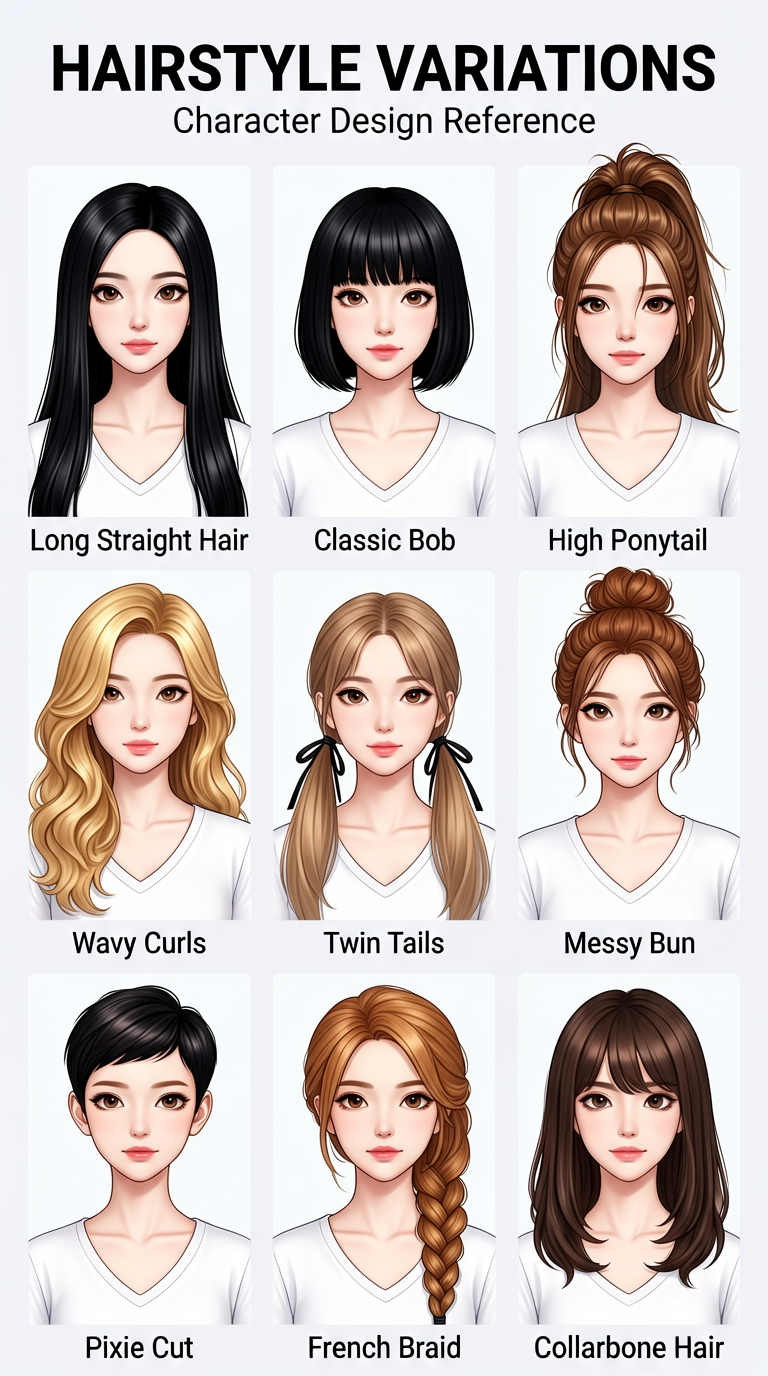 Nine Hairstyle Variations of the Same Woman
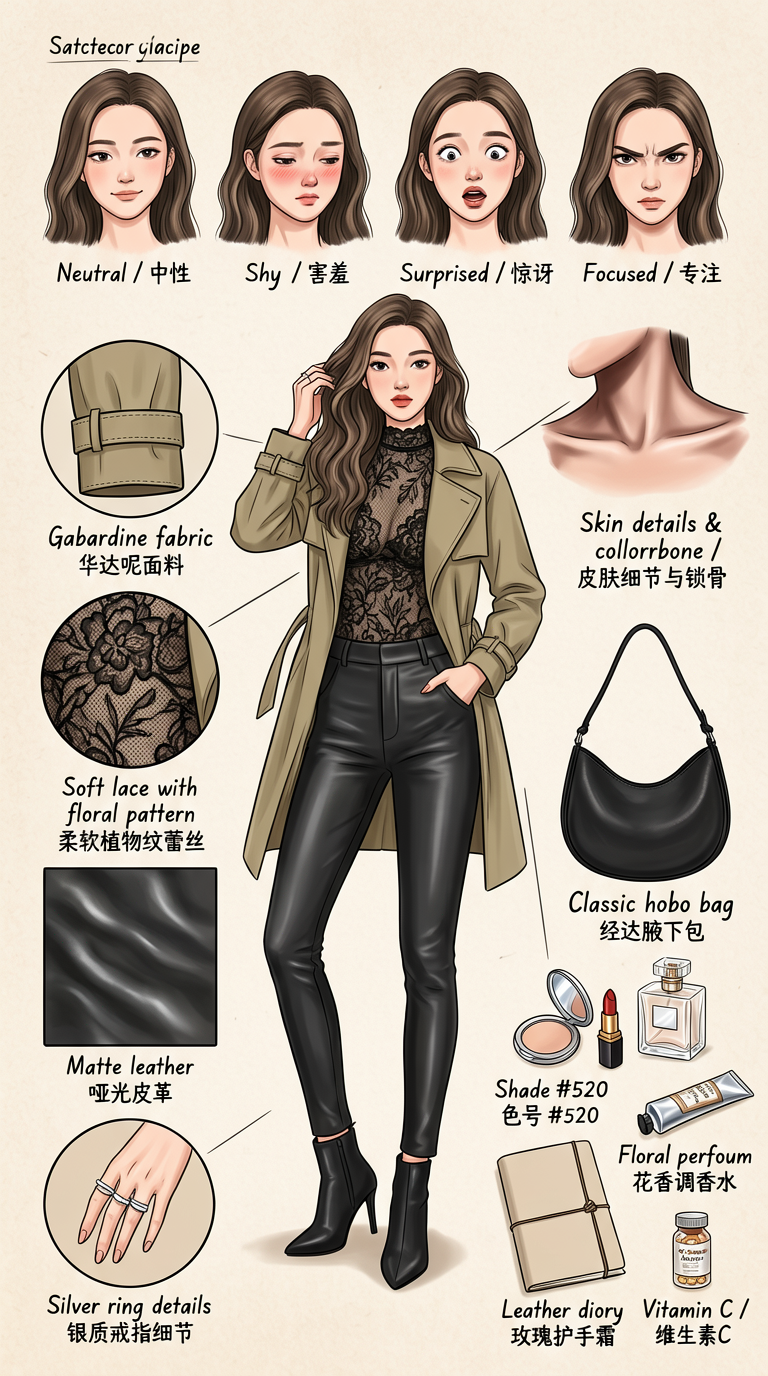 Hand-Drawn Fashion Style Concept Breakdown
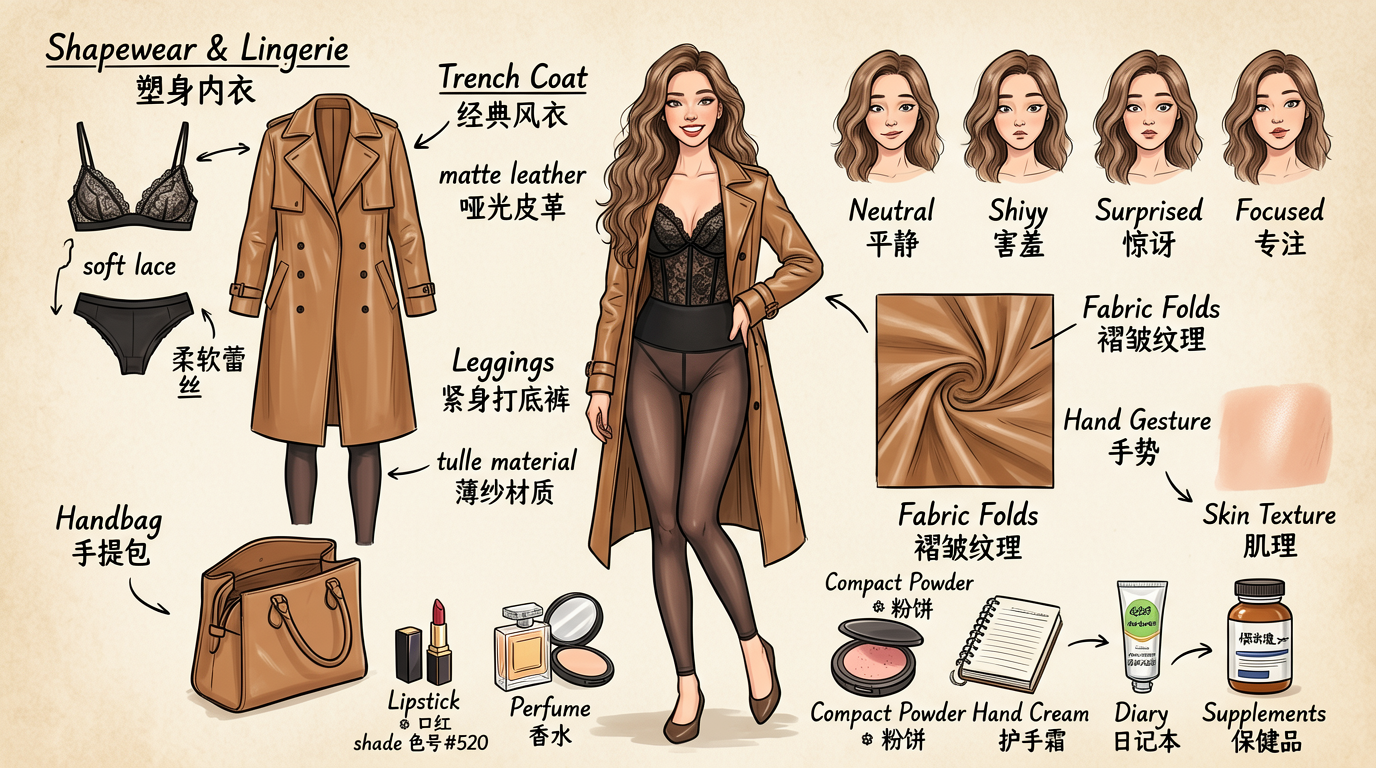 Fashion Figure Outfit Structure Breakdown
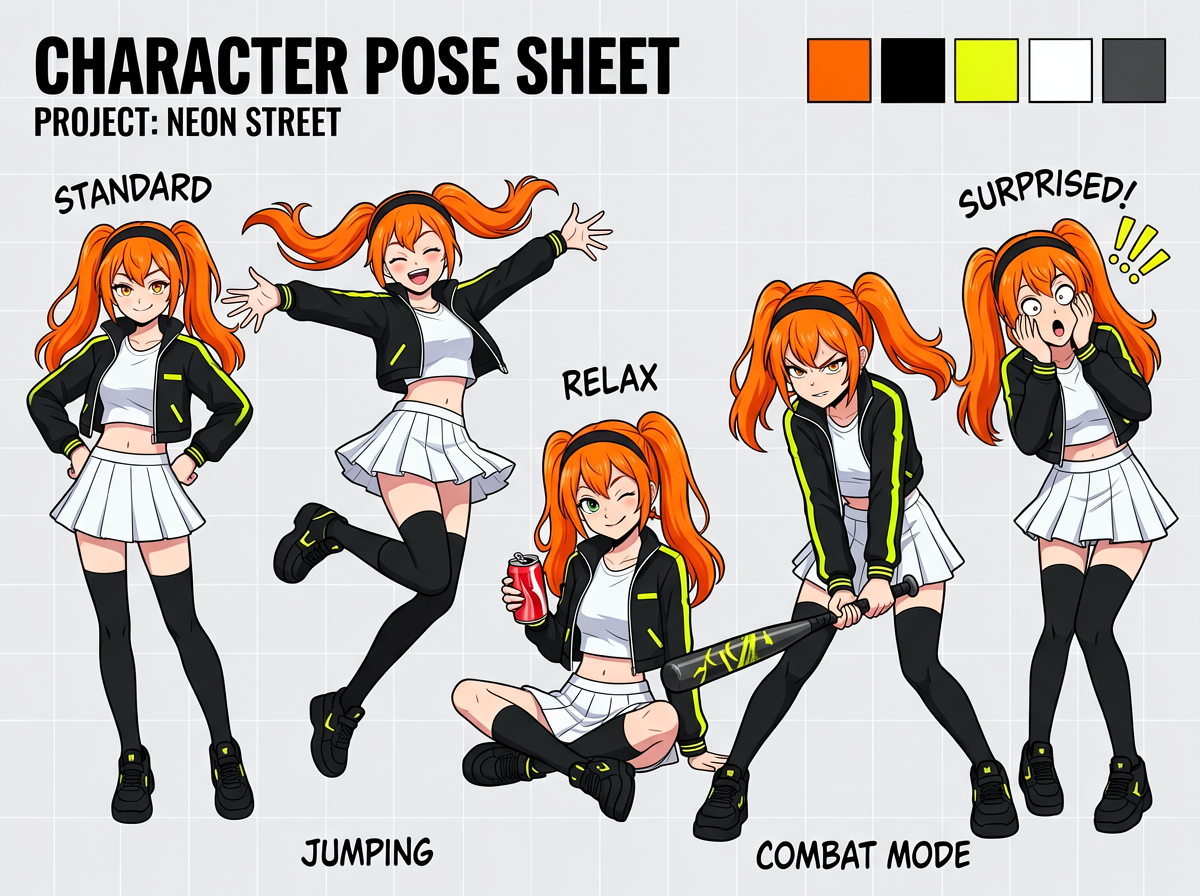 Anime Girl Multi-Pose Character Sheet
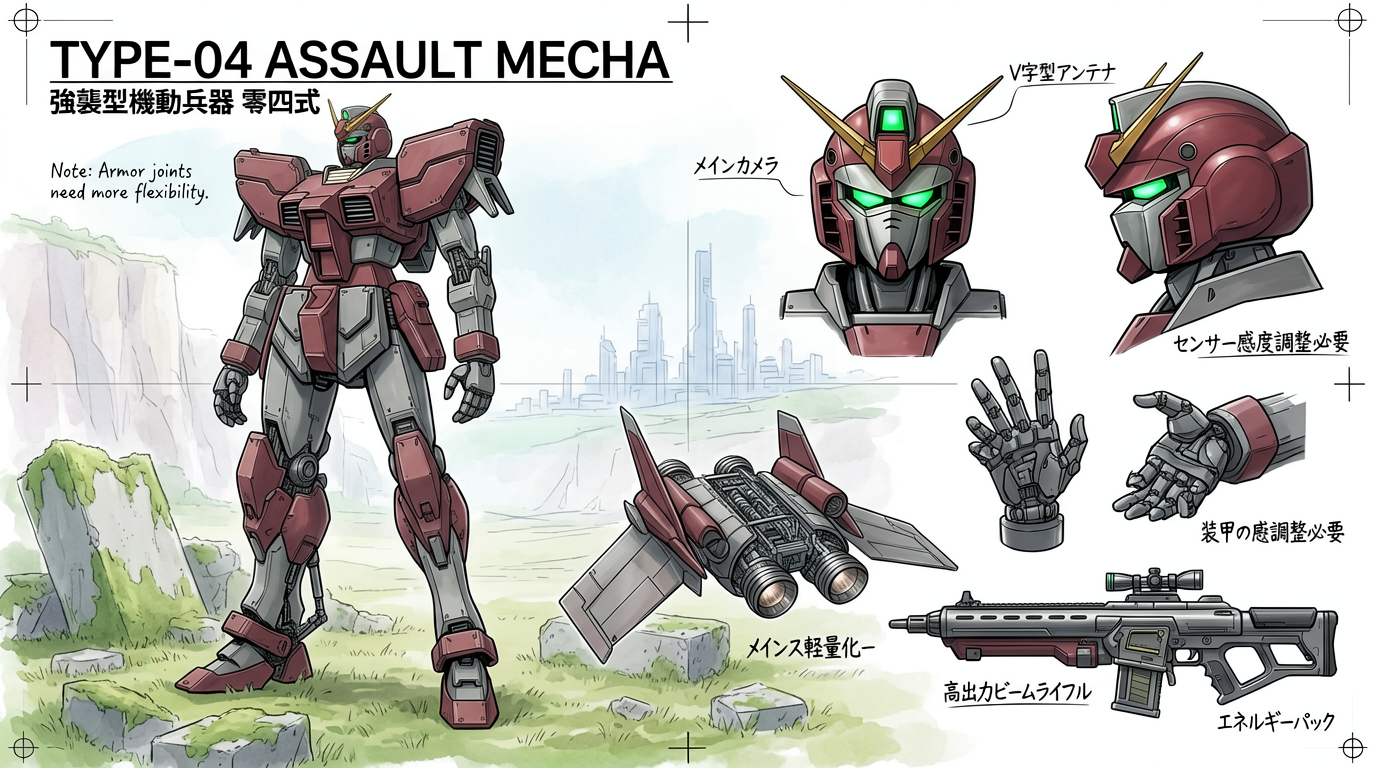 Japanese Mecha Design Blueprint
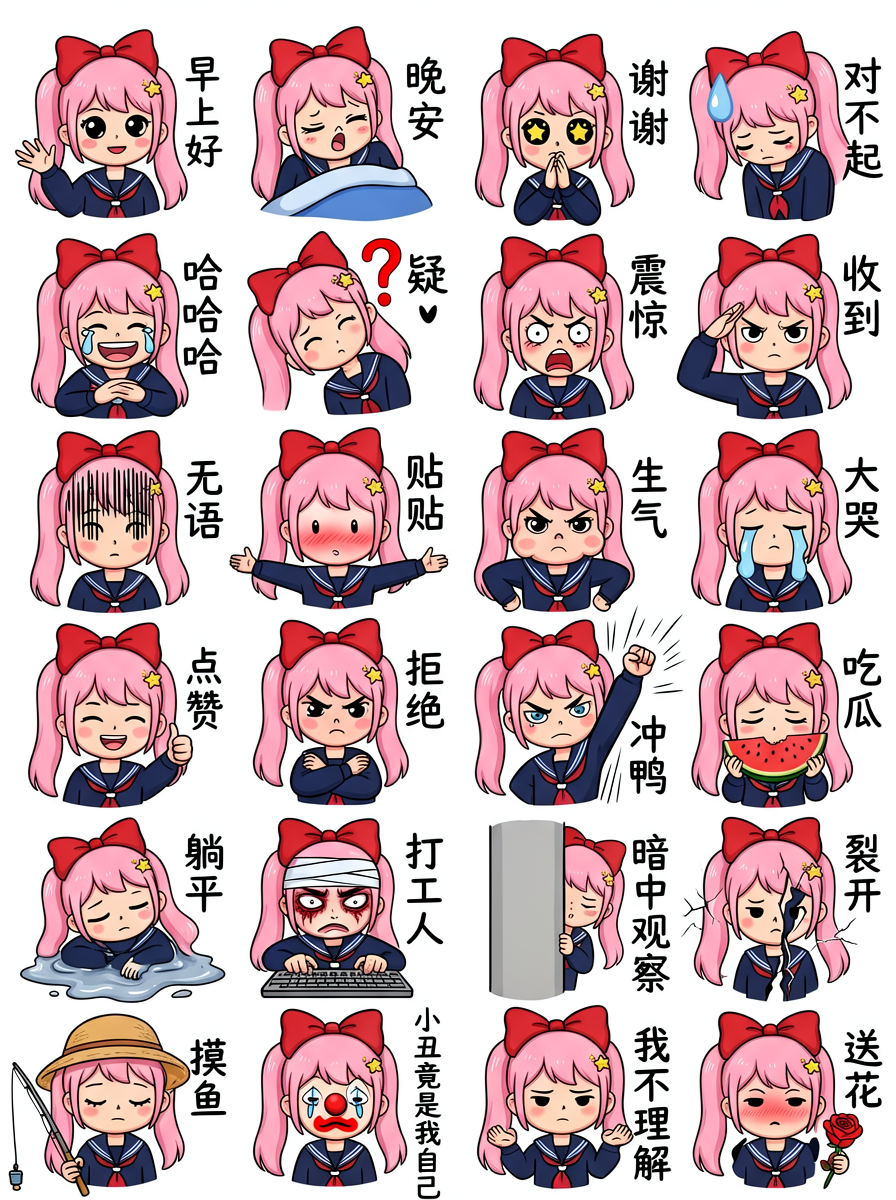 Pink Twin-Tail Girl Chat Emoji Pack
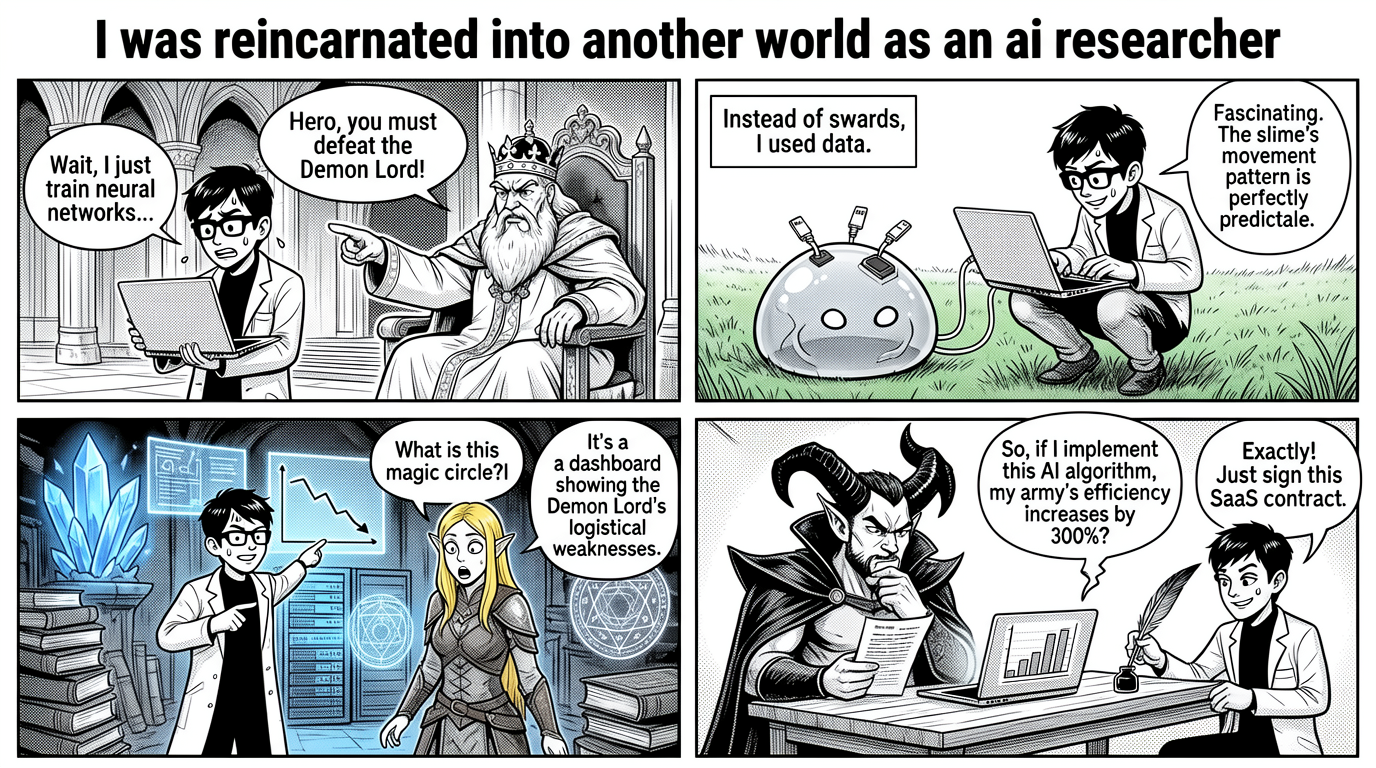 Isekai AI Researcher Four-Panel Comic
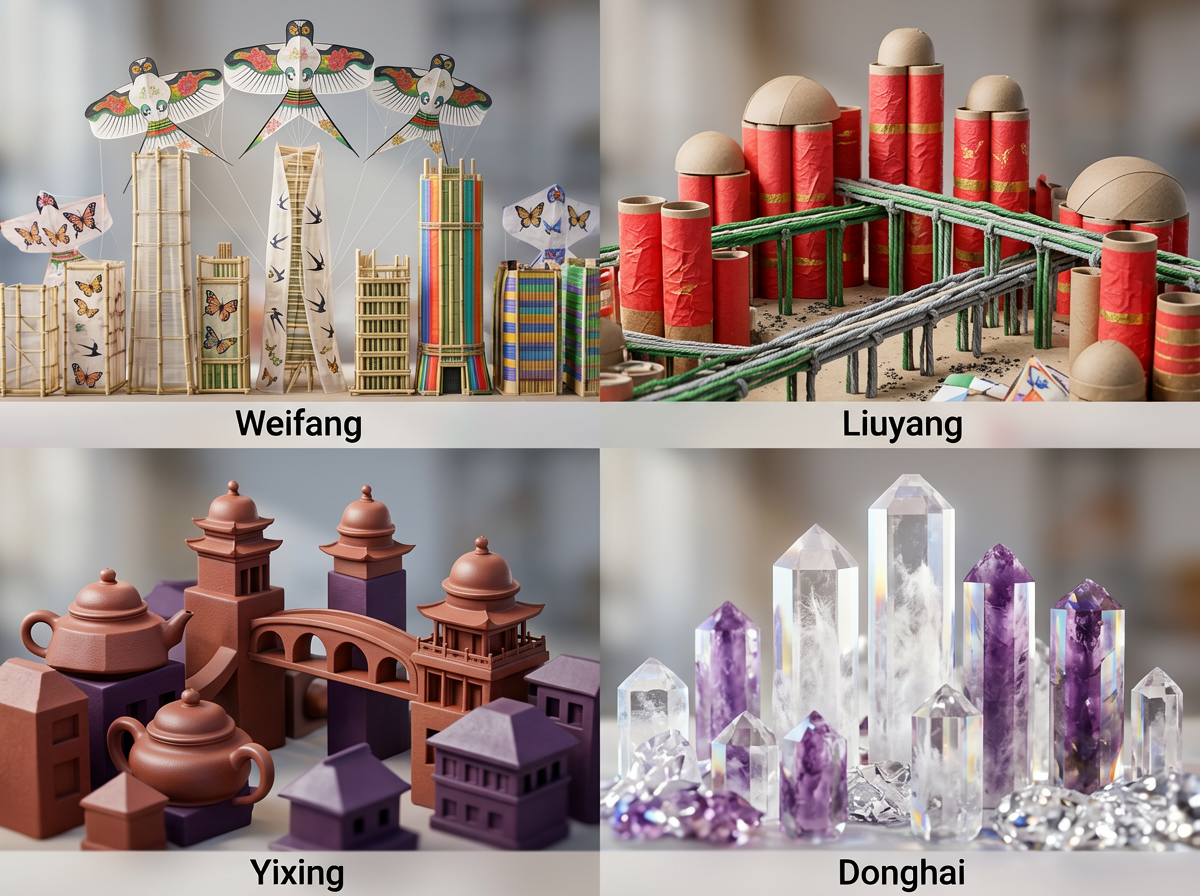 Chinese City Specialty Miniature Skyline
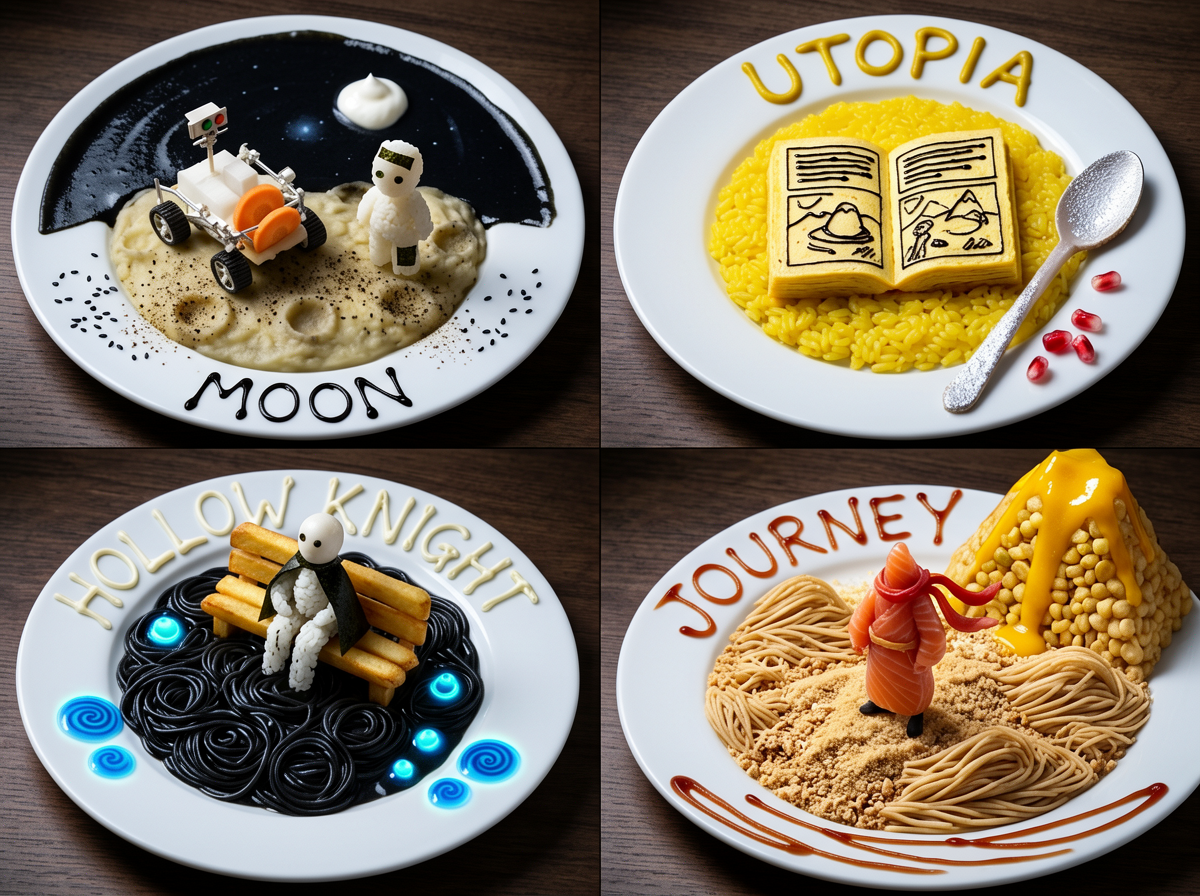 Food Miniature Recreating Obscure Movie Scenes
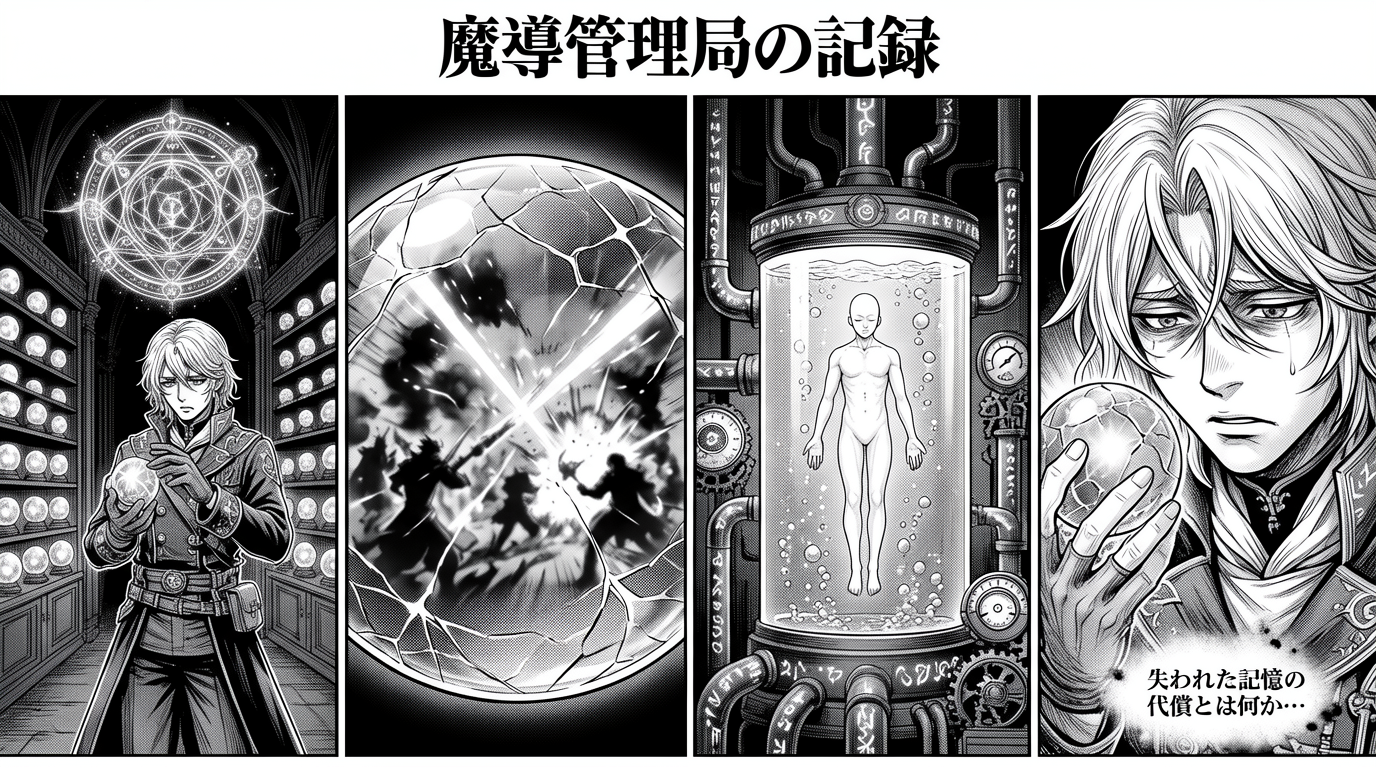 Four-Panel Manga Prompt: Judgment of the Ministry of Magic
Composition means integration, not placing pictures side by side
A collage preserves separate frames. A coherent composition makes subjects appear to share one camera, one space and one moment. That requires more than background removal: the subjects need compatible scale, perspective, light direction, color temperature, depth, contact shadows and believable overlap. This AI multi-image composer gives GLMImage an explicit integration brief so the result aims for a unified scene rather than a board of unrelated cutouts.
The workflow is intentionally separate from generic image-to-image editing. It requires at least two references because the business job is combining sources. You may upload up to four when the final scene needs an additional person, product, location or style cue. If you leave the prompt empty, the built-in action combines the primary subjects into a balanced natural setting. A custom prompt lets you assign roles, choose the environment and state which identities or product details must remain stable.
Assign a clear role to every reference
Upload order provides a simple plan. Image one is the primary subject and image two is the secondary subject. Images three and four are supporting references. They might supply another subject, a location, a prop arrangement or visual style. In the prompt, describe what to take from each image. For example: preserve the woman from image one and the bicycle from image two; use image three only for the riverside setting and morning color.
Explicit roles reduce identity mixing and accidental copying. A style reference should not donate its people or objects. A location reference should not replace the wardrobe of the main subject. A product reference should preserve shape, materials and packaging text rather than merely contribute its color. The more different the sources are, the more important this role language becomes. Think like a compositor preparing a shot list rather than a user asking the model to “mix these.”
Plan the shared scene before describing style
First decide physical relationships: who stands where, which object is held, what sits in front, how far the camera is and where the horizon falls. Then describe the location and light. Only after the scene is plausible should you add palette or rendering style. This order helps GLMImage reconcile geometry before applying aesthetics. If a person should hold a product, state which hand, approximate product scale and whether the label faces the camera.
Choose references with compatible viewpoints when possible. A straight-on product photograph combines more naturally with an eye-level portrait than with an overhead scene. Similar resolution and clear subject boundaries also help. The AI multi-image composer can bridge meaningful differences, but it cannot recover details that do not exist in a tiny or heavily obscured source. Use the clearest authorized image available for every identity or product that matters.
- Role of each numbered image
- Subject placement and interaction
- Camera height, framing and horizon
- Relative scale and foreground order
- Shared light direction and softness
- Identity, product and text details to preserve
Use the canvas to support multiple subjects
The default 1216 × 832 landscape format gives multiple subjects room to breathe and works for campaign scenes, editorial pairs, product bundles and environmental portraits. Square is useful for compact social compositions, while portrait can stack subjects or place a full-length person with a product. The first reference also informs the initial ratio when it uploads, and you can deliberately choose another valid format before generation.
Custom dimensions must remain between 256 and 1536 pixels and divisible by 32. When changing ratio, describe how the scene should expand or crop. Ask for clean copy space if the image will become an advertisement, but do not overload a four-subject scene with several text blocks. Complex layouts benefit from one clear focal relationship. Additional marketing text can remain live and accessible in the final design rather than being permanently baked into the generated image.
Multi-image composition for practical creative work
Campaign teams can combine a photographed product with a concept location before scheduling a full shoot. Retail teams can visualize bundles using separate pack shots. Creators can place two authorized portraits into a shared editorial scene. Entertainment teams can test character interactions and key art. Interior teams can place a furniture reference into a room direction. Social teams can remix approved brand assets into a fresh composition while retaining recognizable product truth.
This workflow is especially useful during preproduction because it exposes composition problems early. A creative director can compare subject scale, visual balance and background choice before budgets are committed. Final commercial output still needs review. Ensure every source is licensed for the intended use, verify faces and products against their references, and avoid using the tool to fabricate misleading associations between real people, events or endorsements.
For the strongest result, fix a clear role for every upload before you generate. Decide which reference sets the lighting, which one supplies the subject identity, and which one only defines a palette or surface — then state those roles in the prompt so the model does not have to guess. Keeping the role assignment consistent across iterations makes the composition predictable and the feedback loop fast: when something drifts, you know exactly which reference to adjust instead of re-describing the whole scene.
Diagnose failures one relationship at a time
If one subject disappears, simplify the scene and restate that both primary and secondary subjects are required. If identities blend, describe each subject with a distinct position and interaction, and remove style references until the identities are stable. If scale feels wrong, provide a concrete physical relationship such as “the bottle is 20 centimeters tall on the table beside the seated person.” If lighting conflicts, choose one reference as the lighting authority.
Inspect occlusion and contact closely. Hands should wrap around held objects, feet should meet the ground and cast shadows, and foreground elements should overlap in a physically logical order. Compare logos, packaging and facial features to every source. A near-successful composition should be refined with a short targeted instruction, not a complete prompt rewrite. Keeping the upload order and role structure stable makes the correction easier for both the model and your team to understand.
Practical starting points
Prompt examples for AI multi-image composer
Use these as structures, not magic phrases. Replace the subject, purpose and constraints with details from your own project.
Two-person editorial scene
Combine the woman from image one and the man from image two in a candid editorial portrait on a quiet tree-lined street. Preserve each person’s face, hair and outfit. Place them walking side by side at the same camera distance, natural conversation, soft late-afternoon light from the left, coherent perspective, realistic ground shadows and gentle background depth.
Defines two stable identities, shared action, environment, camera relationship and light.
Product campaign composition
Use the headphones from image one as the exact hero product and the athlete from image two as the campaign subject. Place the headphones naturally around the athlete’s neck, preserve product shape and logo, energetic modern gym corridor, cool overhead light with a warm rim, waist-up landscape crop, leave clean space on the left for campaign copy.
Specifies interaction, product truth, lighting and practical layout space.
Three-reference interior concept
Place the lounge chair from image one and side table from image two into the room shown in image three. Preserve both furniture designs and materials; use image three only for architecture and daylight direction. Match scale, floor contact, window reflections and soft shadows, calm editorial interior photograph, no extra furniture near the hero pieces.
Assigns separate object and environment roles to three references.
Focused workflow
From input to reviewed image in four steps
Choose Multi-image Composition
The editor switches to a workflow that requires two references and accepts up to four.
Upload primary and secondary subjects
Put the most important identity first and the next required subject second.
Add optional support and role instructions
Use extra references for setting or style, and state exactly what each supplies.
Generate and compare every source
Review identity, product truth, scale, perspective, overlap, shadows and lighting.
Frequently asked questions
How many reference images does the composer use?
Two images are required and up to four are supported. The first two are primary and secondary subjects; later uploads provide additional subjects or support.
Is the prompt optional?
Yes. The guided default combines the primary subjects into one balanced scene. A prompt is recommended when references need specific roles, placement or preservation constraints.
Does it create a collage?
The workflow asks for one coherent new scene with reconciled perspective, scale, light, color, shadow and occlusion. It is not intended to preserve separate picture frames like a collage maker.
Can I combine two people?
Yes, with authorized portraits. State each person’s position and interaction and require both identities, faces, hair and outfits to remain distinct.
Can I combine a product and a person?
Yes. Describe the physical interaction and scale, preserve packaging or logo details and inspect hands, contact, reflections and product geometry carefully.
Which reference controls the background?
You decide in the prompt. If an image should supply only the location, say so explicitly and prevent it from changing the main subjects.
What output size is recommended?
1216 × 832 is the landscape default because it gives several subjects room. Square and portrait formats also work, and custom dimensions must be 32-aligned.
Are references visible when I publish the result?
No. Reference uploads remain private. Only the generated image and visible prompt enter the Gallery review flow after you explicitly submit them.
Create the first version now
The workflow and its core prompt are already available in the generator. The page gives you the brief; the selected tool turns it into an image.
Open the selected workflow