Every good photo has something wrong with it: a stranger in the corner, a wire cutting the sky, a trash can behind the product, an ex in the group shot. AI object removal has quietly become one of the most-used photo tools of the decade — but the results range from invisible fixes to ghostly smudges, and the difference is mostly workflow. Here's how the tool works, what it's good and bad at, and the exact steps for clean removals.

What object removal actually does
Modern removers are inpainting models: you mark the region, the model deletes it and hallucinates what "should" be there — extending the pavement, continuing the wall texture, finishing the horizon line. It doesn't copy neighboring pixels like old healing brushes; it generates plausible fill.
That's why results look magical on textured, predictable backgrounds (sky, grass, water, pavement) and struggle on structured ones (brick patterns that must align, faces that must not exist, text that must continue correctly).
The removal difficulty ladder
Roughly in order of increasing difficulty:
- Small objects on simple backgrounds — birds in sky, a logo on a wall. Near-perfect results.
- Wires and poles against sky or blur — the classic use case; excellent.
- People at photo edges, partially occluding — very good, as long as they don't cross your subject.
- Objects intersecting the subject — a hand on a shoulder, a railing over a face. Requires "rebuild the hidden part" phrasing and multiple attempts.
- Large regions with structured patterns — a person covering half a tiled floor. Expect visible artifacts; plan a tighter crop instead.
Knowing where you are on this ladder before you start saves twenty minutes of trying to fix the unfixable.
The workflow that avoids smudges
- Work at full resolution. Removal quality collapses on compressed thumbnails.
- Remove one object per pass. Batch-marking two objects makes the model compromise both.
- Be specific about the fill: "remove the person on the left and rebuild the beach and water behind them naturally" beats a bare "remove."
- Check at 100% zoom — edges, shadows, and reflections are where ghosts live.
- Fix residuals with a second, smaller pass on the remaining smudge rather than re-rolling the whole edit.
The cases people actually bring
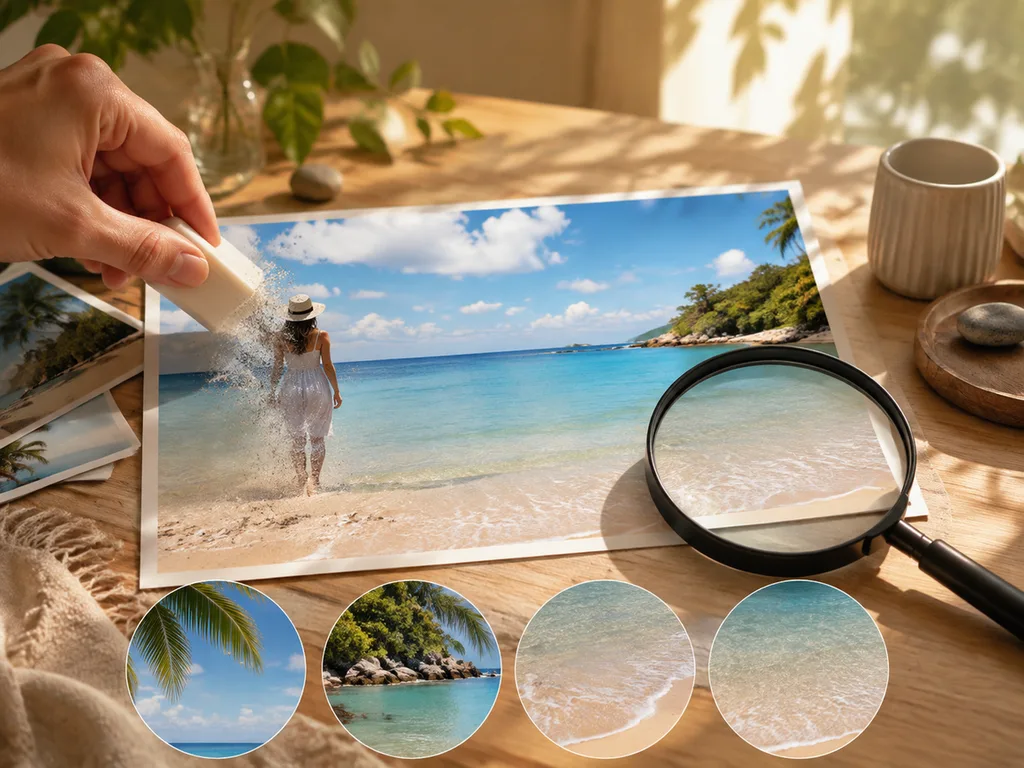
The photobomber. Beach, landmark, street — the most common single request. Works well when the bomber doesn't overlap your subject. If they do, use "remove the person behind [subject], rebuild the background, keep [subject] unchanged."
The power lines. Landscape photographers' nemesis. Sky-removal is nearly always clean; lines crossing trees need the second-pass treatment.
The timestamp and watermark on old scans. Small, on flat regions — easy. For watermarks on complex backgrounds, work in small sections.
The ex, the former business partner. Group-photo subtraction works when the person stands at the edge or middle with clean separation. Two people overlapping: remove one, generate, then remove the second.
Product photo clutter. Props, reflections, tape, stray cables — the ecommerce workhorse. A clean base shot is step one of the whole AI product photography pipeline; removal is how you rescue the ninety percent of shots that aren't clean.
iPhone and phone photos
Phone shots remove well with one caveat: iPhone's computational photography bakes in depth effects and local contrast, so fills over blurred portrait-mode areas can look subtly wrong. Turn off portrait mode for photos you plan to clean. Otherwise the workflow is identical: edit at full size, one object per pass, zoom check.
For whole-image cleanup before stylizing — turning a photo into a painting or print — removal first, style second. Style transfer locks in clutter otherwise; the photo-to-painting guide covers what comes after.
What removal can't do (yet)
Rebuilding large hidden geometry — the wall behind a removed sofa, the floor under a removed table — remains the frontier. Reflections of removed objects sometimes survive in mirrors and glass. And removal deliberately can't reconstruct information that was never captured: a person covering a third of another face leaves a face the model must invent, and inventing faces is exactly what you should handle manually or reshoot.

FAQ
Is it really free?
Try the object remover → — free to start on our platform, no installation, runs in the browser on any device including iPhone.
Will removal leave a smudge?
Follow the workflow: full resolution, one object per pass, describe the fill. Small objects on simple backgrounds come out clean on the first try.
Can it remove a person standing in front of someone else?
Partially. If the covered person's face is hidden, the model must invent it — do that manually or reshoot. Limbs and bodies behind clean edges work.
Does it work on screenshots and old scans?
Yes, with quality proportional to source. Compression artifacts inside the fill region are the limit — scans of prints remove better than re-saved social screenshots.
Is removing objects from photos misleading?
Removing clutter and photobommbers is standard retouching. Removing things that change what a scene claims — safety equipment, damage, competitors' products in a comparison — crosses from cleanup into misrepresentation. Keep the line bright.